Open App Versions for the first time
A first look at the App Versions admin panel — where it lives, what the installed-apps list looks like, and how to tell the App Store source is wired up.
Goal
By the end of this guide you will have opened App Versions from the admin settings, recognised the alphabetical list of installed apps and their current versions, and confirmed that the App Store source responds without an error banner.
Prerequisites
- A Nextcloud admin account on an instance where the App Versions
app is installed and enabled. Non-admins are blocked at the API
level (see the
version-managementspec). - Outbound HTTPS to
apps.nextcloud.com(the App Store source).
Steps
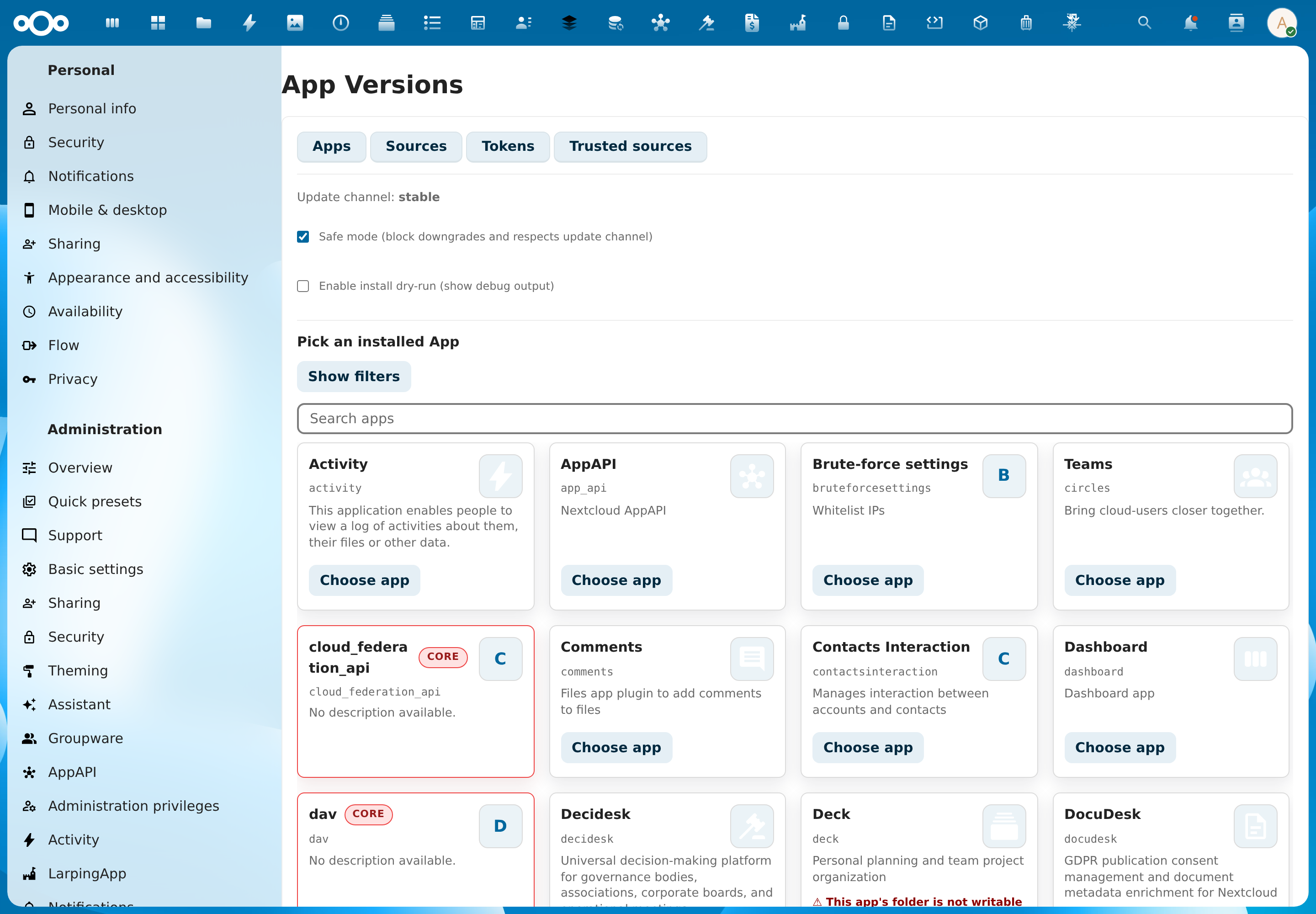
- Sign in as an admin and open Settings → Administration → App Versions (it has its own section in the left sidebar — App Versions deliberately has no entry in the top app navigation).
- The panel opens on the Apps tab: the update channel and safe-mode toggles at the top, then the searchable grid of installed apps. The other tabs (Sources, Tokens, Trusted sources) configure external forge sources.
- Pick any app card via Choose app. A status note shows while the
version list is fetched from the active source; the footer then names
that source (
appstoreby default).
Verification
You are set up correctly when: the App Versions panel renders the installed-apps grid (without the App Versions app itself in the list — it excludes itself by design), each card shows a current version, and opening the picker on any app returns a populated version list rather than an error banner.
Common issues
| Symptom | Fix |
|---|---|
| App Versions missing from admin settings | The app is not enabled — enable it from Apps → Disabled apps. |
| "Forbidden" message on load | The signed-in account is not an admin — App Versions is admin-only. |
| Installed apps load but version pickers are empty | Outbound HTTPS to apps.nextcloud.com is blocked at the network layer; allow it and reload. |
Reference
- Roll back an app to a previous version — the next step.
version-managementspec.