Install versions from GitHub or Codeberg
App Store releases are the default, but some apps ship faster on a forge — or are not published to the App Store at all (for example apps you deploy yourself, or apps that ship bundled with the Nextcloud server). This guide binds an installed app to a GitHub or Codeberg repository so its release list lands in the version picker.
Scope: App Versions manages versions of apps that are already installed. It does not install a brand-new app that has never been on the instance — do the first install via the App Store,
occ app:install, or a manual deploy, then manage every later version from here.
Goal
By the end of this guide you will have:
- Added the repository owner to the trusted-sources allowlist.
- (Private repos only) Stored a personal access token.
- Bound an installed app to
github:{owner}/{repo}orcodeberg:{owner}/{repo}. - Confirmed the app's version picker now lists the forge releases and can install one.
Prerequisites
- App Versions is installed, enabled, and reachable as an admin (see Open App Versions for the first time).
- The repository publishes release assets containing the packaged
app (a
*.tar.gzby default — the same artifact you would upload to the App Store). - For private repos: a personal access token with read access to the
repository contents (GitHub fine-grained PATs need
Contents: Read; classic PATs needreposcope; Codeberg tokens needread:repository).
Step 1 — Trust the source
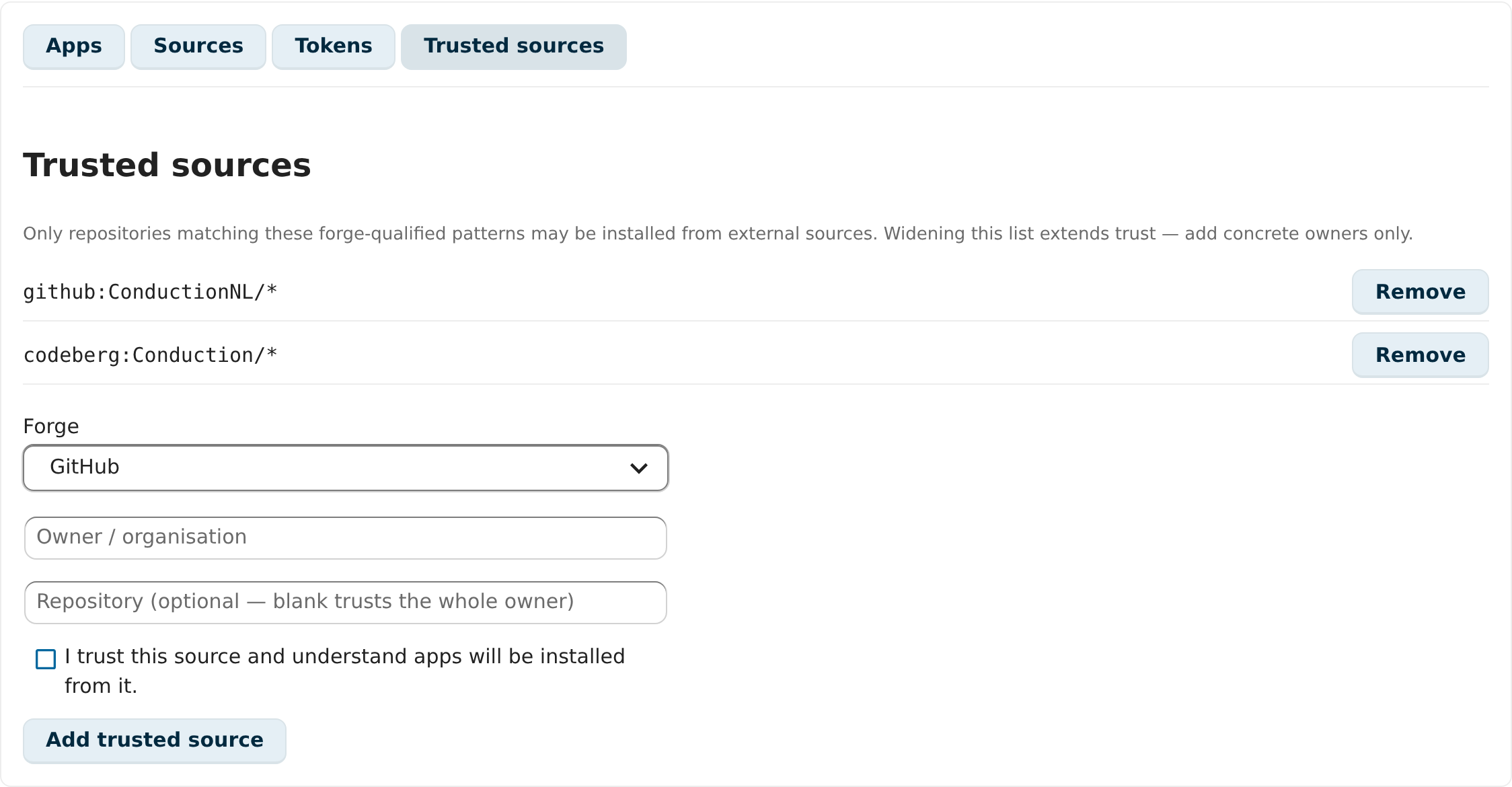
Open Settings → Administration → App Versions and switch to the Trusted sources tab. Nothing can ever be installed from a forge unless its repository matches a pattern on this allowlist — this is the security boundary, so add concrete owners only.
Pick the forge, enter the owner (and optionally a single repository —
leaving it blank trusts everything the owner publishes), tick the
confirmation checkbox, and select Add trusted source. The pattern
appears in the list as github:Owner/* or codeberg:Owner/repo.
Step 2 — Add a token (private repositories only)
Public repositories need no credentials — skip to step 3.
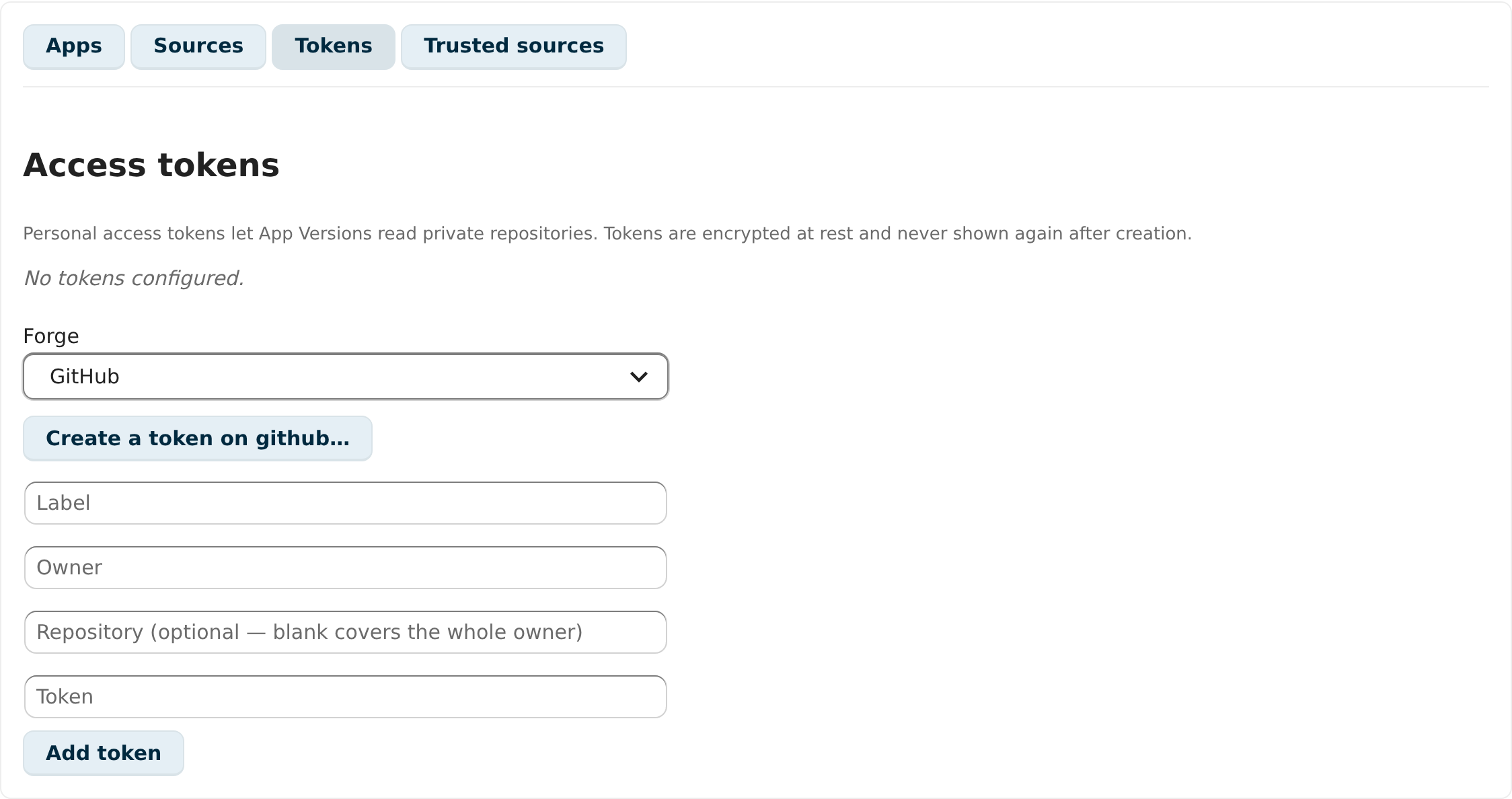
For a private repository, open the Tokens tab and store a personal access token: pick the forge, give the token a label, scope it to the owner (and optionally one repository), and paste the token. It is encrypted at rest with Nextcloud's server key and never shown again — only a hint (first and last characters) remains visible.
Step 3 — Bind the app to the repository
Open the Sources tab. Pick the installed app, the forge, and enter
the owner and repository. The asset pattern selects which release asset
to install (*.tar.gz matches the standard packaged-app tarball).
Select Bind source.
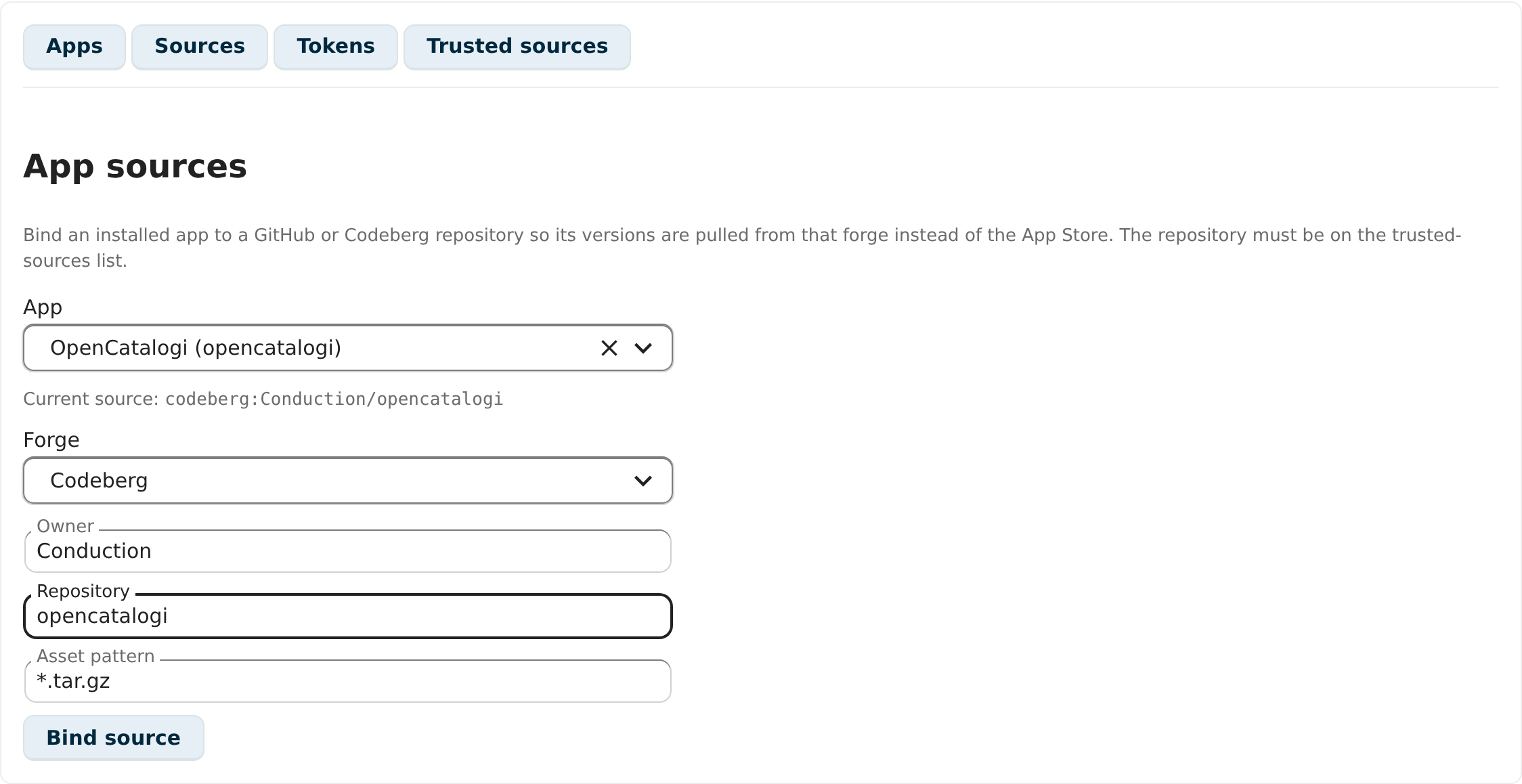
The panel confirms the binding — Current source: codeberg:Conduction/opencatalogi in this example. If you get a
forbidden error instead, the repository does not match any
trusted-sources pattern: go back to step 1.
Step 4 — Pick a version
Switch to the Apps tab and choose the app. The version list is now
fetched from the forge's releases — newest first, the v prefix
stripped from tags — and the footer reads Versions source: codeberg:Conduction/opencatalogi instead of appstore. Select a
version to install it.
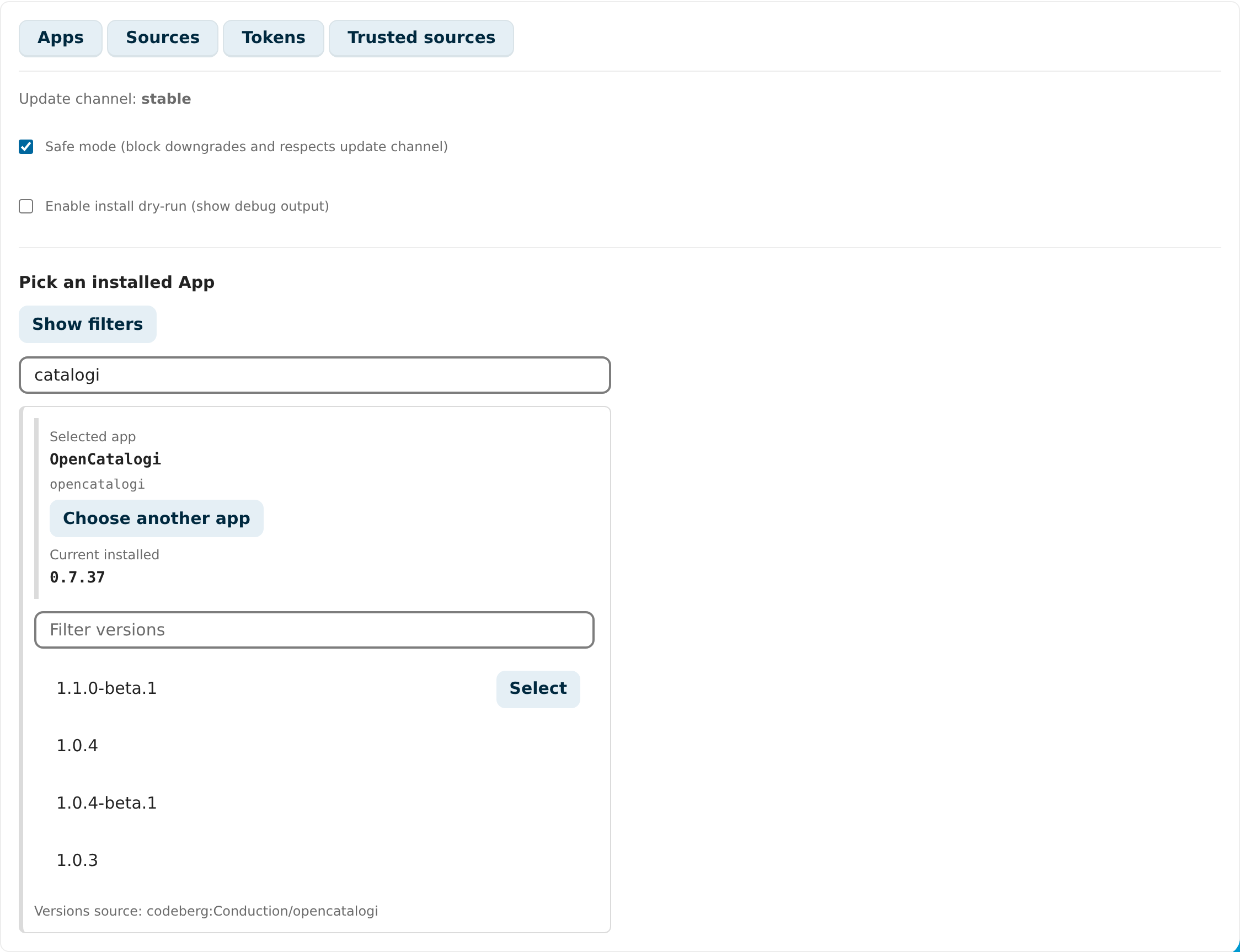
Safe mode (the checkbox at the top) still applies: downgrades are blocked while it is on, and every install honours the configured update channel.
Apps that are not in the App Store at all
Two cases look identical ("App is not available in the Nextcloud App Store") but differ in what to do:
- Your own / third-party apps that simply are not published to apps.nextcloud.com: bind them to their forge repository as above and manage versions from there.
- Shipped apps (bundled inside the Nextcloud server release, such
as
activityornextcloud_announcements): these have no store releases by design — their version follows the server release. App Versions tells you so when you select one. You can bind one to its upstream repository (for examplegithub:nextcloud/activity) if you know what you are doing, but mixing app versions across server releases is at your own risk.
Verification
You are set up correctly when: the version picker's footer names your forge binding as the source, releases appear newest-first, and selecting one installs it (run with Enable install dry-run first if you want to see the full debug trail without writing anything).
Switching back to the App Store
Bind the same app to the App Store kind again from the Sources tab (or remove the binding) and the version picker returns to apps.nextcloud.com releases.